
How to Link a RedotPay Card to Google Pay and Google Play
Step-by-step guide to add a RedotPay Visa card to Google Wallet and Google Play payments when supported.
Summary
Checked 2026-07-20
You can try adding your RedotPay Visa card in Google Wallet if Google Pay is supported for your card, Google account region, and device. Availability can vary.
You may be able to use a RedotPay Visa card with Google Pay, Google Wallet, Google Play, YouTube Premium, and other Google payments when your card, country, device, and Google account are eligible.
This guide rewrites RedotPay’s raw Google Pay setup material into a practical tutorial. Google controls Google Wallet and Google Play payment acceptance, so use these steps as a setup path to test, not a guarantee that every account will be approved.
Before you start
Prepare these items first:
- An Android phone with Google Wallet available.
- An active RedotPay Visa card.
- Access to the RedotPay app for verification.
- Enough balance for a small test authorization or purchase.
- A Google account with no unresolved payment or country-profile issues.
If you are new to RedotPay, complete registration, KYC, card activation, and funding before adding the card to Google.
Create a RedotPay account Use this link, or enter referral code 3wiyh in the appPart 1: Add your RedotPay card to Google Wallet
Start with Google Wallet on your Android phone:
- Open the Google Wallet app.
- Tap Add to Wallet.
- Select Payment card.
- Tap New credit or debit card.
- Scan your RedotPay Visa card or enter the details manually.
- Confirm the card number, expiry date, and CVV security code.
- Agree to Google’s terms and conditions.
- Complete verification by SMS or inside the RedotPay app if prompted.
If the card is added successfully, test with a small supported transaction before relying on it for daily payments.
Part 2: Add your RedotPay card to Google Play payments
You can also try saving the card to your Google account for Google Play, YouTube Premium, and other eligible Google services:
- Open the Google Play Store.
- Tap your profile picture in the top-right corner.
- Go to Payments & subscriptions.
- Tap Payment methods.
- Tap Add a card.
- Enter your RedotPay Visa card number, expiry date, and CVV.
- Fill in billing information if Google requests it.
- Tap Save.
Use billing details that are valid for your account and acceptable to Google. The raw setup material includes a Singapore billing-address example, but Google may reject details that do not match your account, card, or payment profile.
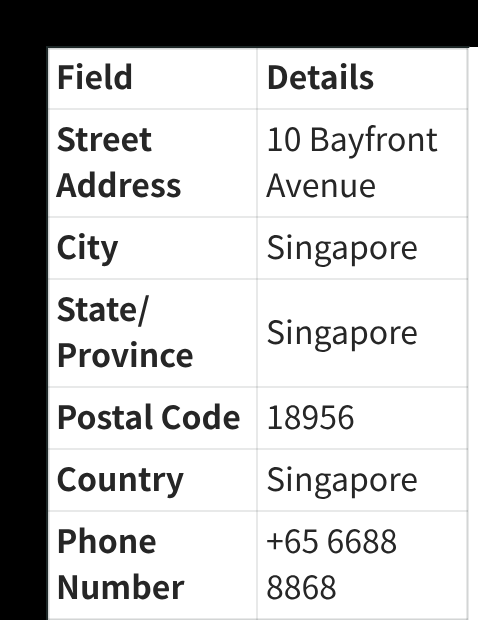
Part 3: Change Google Play country only if needed
Changing Google Play country is appropriate after moving to that country, with a payment method from it. Google requires at least 90 days after the initial country setting and between later changes; extra restrictions can apply, and Google Family members cannot change country. A declined card alone does not establish eligibility to switch to Singapore. Google Play.
If Singapore is appropriate for your Google account:
- Open the Google Play Store.
- Tap your profile picture in the top-right corner.
- Go to Settings.
- Tap General.
- Open Account and device preferences.
- Tap Country and profiles.
- Select Singapore if it appears and is correct for your account.
- When prompted for a payment method, choose Skip when available or try adding your RedotPay card directly.
- Wait up to 48 hours for the country change to take effect, then try adding the card again.
Do not change your Google Play country unless you understand the impact on your Google account.
What you can do after linking
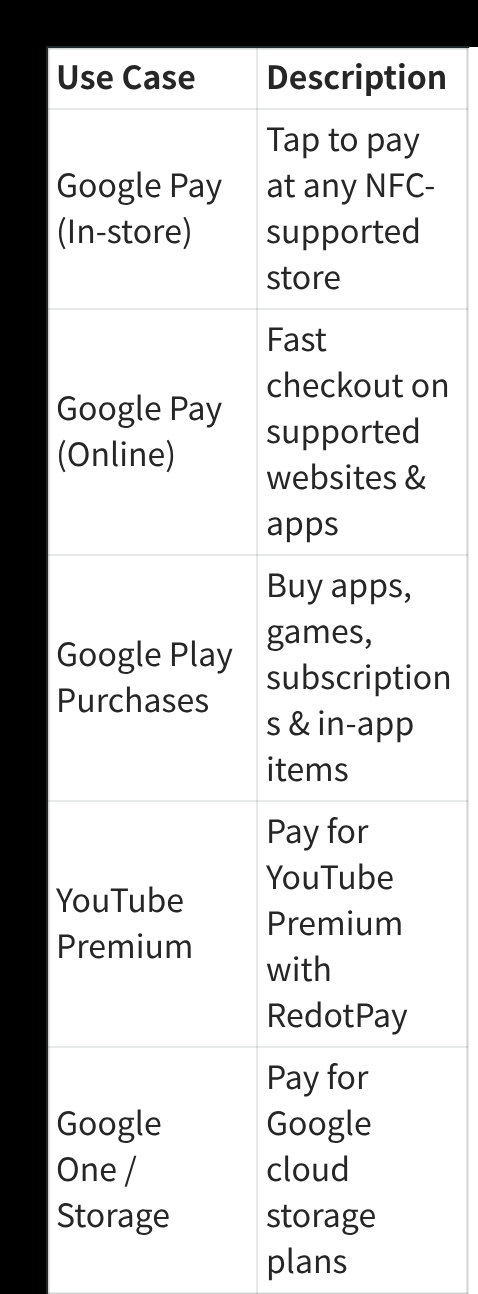
If the card is accepted, common uses include:
| Use case | What it can be used for |
|---|---|
| Google Pay in stores | Contactless payments at merchants that accept Google Pay. |
| Google Pay online | Checkout on supported websites and apps. |
| Google Play purchases | Apps, games, subscriptions, and in-app purchases when supported. |
| Google services | Eligible services such as YouTube Premium or Google One. |
Availability depends on Google, the merchant, your card status, your device, and regional support.
Troubleshooting
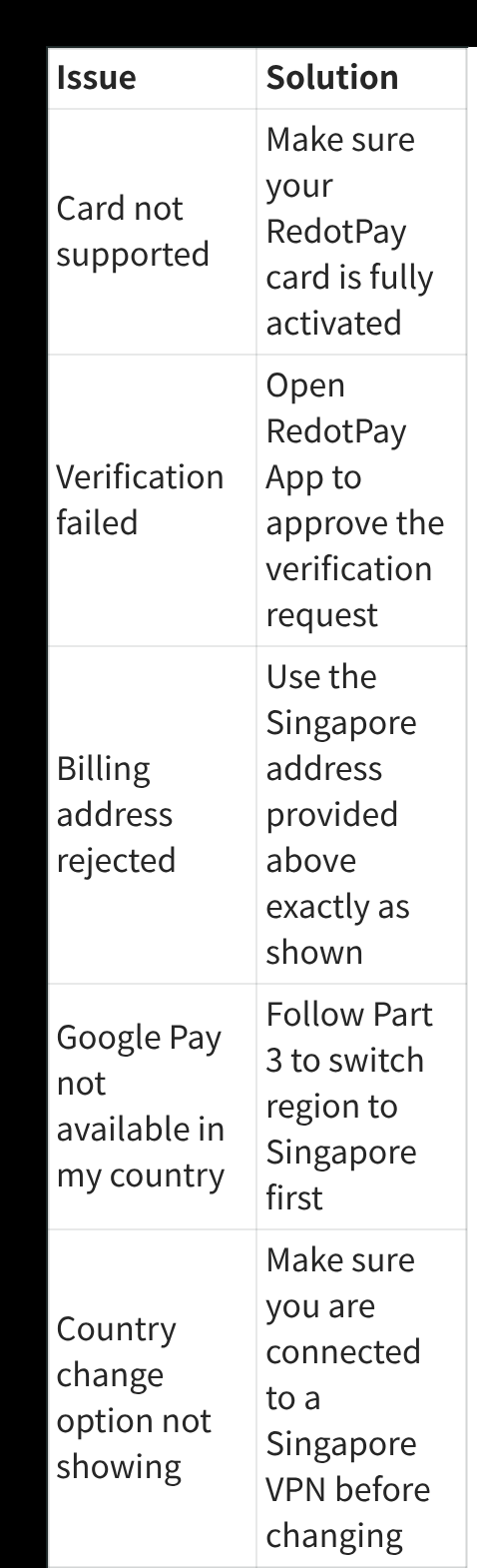
| Issue | What to check |
|---|---|
| Card binding failed | Confirm the card is active, funded, and entered correctly. |
| Verification failed | Check SMS delivery and RedotPay app notifications. |
| Google Play country option is missing | Google may not offer a country profile change for your account. |
| Billing address rejected | Use valid billing details for your Google account and payment profile. |
| Payments still fail | Try a small supported transaction later, update the apps, or contact RedotPay support from the app. |
Practical notes
Google Pay and Google Play acceptance is not controlled by this website. A failed attempt may come from card eligibility, payment-profile settings, regional support, billing details, or a temporary verification problem.
Keep enough RedotPay card balance for authorizations, watch exchange rates and fees, and test with a small payment before using the card for a time-sensitive purchase.
Create a RedotPay account Use this link, or enter referral code 3wiyh in the appSources and verification
- How to link a virtual RedotPay card to Google Pay — Official RedotPay, checked 2026-10-06
- Google Play country-change requirements — Merchant documentation, checked 2026-10-06
Recent updates
- : Corrected Google Play country-change timing and location/payment-method requirements against official Google guidance. No wallet-binding or merchant-payment test was performed.
Frequently asked questions
Can I add a RedotPay card to Google Pay?
Do I need to change my Google Play country?
Why was my RedotPay card rejected by Google?
Part of Payments and Subscriptions
Related guides
- How to Link a RedotPay Card to Alipay Step-by-step guide to add a RedotPay Visa card to Alipay and complete verification when supported.
- How to Link a RedotPay Card to Apple Pay and App Store Step-by-step guide to add a RedotPay Visa card to Apple Pay and use it as an App Store payment method when supported.
- How to Link a RedotPay Card to WeChat Pay Step-by-step guide to add a RedotPay Visa card to WeChat Pay Wallet when supported.
- How to Download RedotPay Without Google Play If RedotPay is unavailable in Google Play, use RedotPay's official app-download page or Android APK link and avoid unofficial mirrors.
- How to Use the $5 Sign-Up Reward Learn how the RedotPay $5 sign-up reward works, what it cannot pay for, how long it lasts, and when to use it.
Get the RedotPay sign-up reward and virtual-card discount
Use the two offers at different steps. The sign-up reward does not pay the card application fee.
Invite-link reward
Register through our invite link to receive the $5 reward when eligible.
Virtual-card promo code
Enter PAY8U during the $10 virtual-card application to get 20% off and pay $8. Confirm the discounted total before payment.
PAY8U
Alternative virtual-card code: OFF20 / RED08